Showing posts with label Gadgets. Show all posts

Saturday, May 19, 2012

MK802: NEW USB THUMB DRIVE-SIZED ANDROID COMPUTER


MK802 usb thumb drive sized computer

The mini computer ships with Android 4.0 ICS and just like Cotton Candy, it comes with microUSB and microSD slots as well as WiFi. MK802 also has a full-sized USB port and of course, there's also a HDMI port.

The price is larger than for the Raspberry Pi: $74 (including shipping), but the new mini PC has better hardware. And it's a lot cheaper than Cotton Candy, which does have a dual-core CPU and 1GB of RAM, but it costs $199 plus shipping and further more, the pre-orders have been closed for now.

MK802 can be purchased via aliexpress.com (US $74.0)

Tuesday, May 1, 2012

XOLO X900, First Smartphone with Intel Inside Launches in India Market


XOLO X900 Brings the Best of Intel Computing to Mobile Users in India

XOLO X900 Smartphone from Lava International with Intel InsideĀ®
XOLO X900 Smartphone from Lava International with Intel Inside®
New Delhi, India, April 19, 2012 – Intel Corporation and Lava International Ltd., one of India’s fastest-growing mobile handset companies, today announced the general availability of the XOLO X900, the first smartphone with Intel inside. The device will be available to customers for purchase beginning 23rd April at a best-buy street price of approximately INR 22000.

Lava also announced its long-term partnership with Croma, a national chain of mega stores of consumer electronics and durables, for promotion and sale of the XOLO X900.

The partnership between Intel and Lava was announced at Mobile World Congress in Barcelona in February. The XOLO X900 is based on Intel’s smartphone reference design featuring the Intel® Atom™ processor Z2460with Intel® Hyper Threading Technology and supporting HSPA+ 3G connectivity.

The high-performance 1.6 GHz Atom™ processor with Hyper Threading Technology brings speed and multi-tasking performance to consumers’ fingertips. The leading-edge 400 MHz graphics clock and the full 1080p HD video encoding and playback make this phone a perfect entertainment device, providing users with an immersive gaming and video experience. It also features an 8-megapixel camera delivering advanced imaging capabilities including burst mode that allows 10 pictures to be captured in under a second.

The XOLO X900 is housed in a sleek design with a 4.03-inch high-resolution LCD touch screen for crisp text and vibrant images. At launch, the X900 will run on Android Gingerbread*, with a planned over-the -air software upgrade to Android’s Ice Cream Sandwich* platform shortly thereafter. Intel’s technology enables a high-performance user experience, all while maintaining great battery life – up to 5 hours of 3G browsing, 45 hours of audio and 8 hours of talk time1.

“Through XOLO X900, we are happy to bring to the Indian market a device that addresses the needs of those for whom speed and performance matters. After our success in feature phones with over 10 million happy customers in under 3 years, XOLO will be a differentiated player in the fast-growing smartphone segment. The initial reviews of XOLO X900 have been very positive and independent benchmarks clearly point to the fact that when it comes to speed and performance, XOLO X900 is the gold standard,” said Vishal Sehgal, co-founder and director, Lava International.

“The first smartphone with Intel inside is now available to Indian consumers,” said Mike Bell, Intel corporate vice president and general manager of the Mobile and Communications Group. “The boundaries of personal computing are expanding. As we enter the India market with our first smartphone from Lava, the device not only showcases the rich capabilities and user benefits of Intel computing, but also highlights the exciting possibilities of what’s still to come.”

Commenting on the long-term strategic partnership with Lava, Ajit Joshi, MD and CEO, Infiniti Retail Limited, said “We at Croma are extremely pleased to collaborate with Intel and Lava to get this exciting new product into the market. We always endeavor to get the latest and best products first to our consumers and this is a step in that direction. We are very optimistic about the prospects of this exciting new product.”

Starting 23rdApril, the XOLO X900 will be available for purchase to customers from Croma and Xolo.in, followed by availability in other retail chains, general trade and online stores from early May.

About Intel
Intel (NASDAQ: INTC) is a world leader in computing innovation. The company designs and builds the essential technologies that serve as the foundation for the world’s computing devices. Additional information about Intel is available at newsroom.intel.com andblogs.intel.com.

About Lava
Lava international is one of the fastest growing brands in Indian mobile market today. The organization started operations only 30 months back and is rapidly growing its market share. “Get the power in your hand” -- with this motto as the guiding principle, Lava embarked on its journey to empower people with innovative products. Today the brand has a wide range of handsets in its portfolio. The company has already expanded its operations in all the states of India and has a network of 1,000 distributors and presence in ~50,000 retail counters.

Performance and battery life estimates are based on internal Intel testing using the Intel Atom processor Z2460 Smartphone Reference Design and are provided for informational purposes only. Any difference in system hardware or software design or configuration may affect actual performance.  Final figures may vary based on final OEM device implementation and usage.

Intel, Atom and the Intel logo are trademarks of Intel Corporation in the United States and other countries.

Lava, XOLO & the LAVA & XOLO logos are trademarks of Lava International Limited.

Monday, April 30, 2012

PowerPad 16 USB station charges your iPad and 15 others


So you've found the perfect solution for staying juiced up during your month-long African safari, but how are you possibly going to keep all 16 iPads powered until just before it's time to go? Why the Datamotion Systems PowerPad 16 ES-IP-PP16 USB Charging Hub, of course! Sure, there's no practical household application for the PP16, even in the most gadget-obsessed of families, but it'd be more than welcome in an enterprise environment or even an airport (especially an airport). The PowerPad's maker claims that it was "designed for charging Apple devices," though there's no reason you wouldn't be able to put 16 2.1-amp USB ports to use with other battery-powered devices. And we do need to address the elephant in the room -- that rather beastly fan-sporting housing -- but as Datamotion points out, the thing can always live under a counter and out of view. Hit up the source link for a closer look.

Monday, September 19, 2011

Cool design ideas

Some really cool design ideas: folding chairs, folding bath, cool light, pizza scissors,...
Cool design ideas - Folding chair
Cool design ideas - x-bed
Cool design ideas - phone charge holder
Cool design ideas - electrical connectors holders
Cool design ideas - folding chairs 2
Cool design ideas - chair and ladder in one
Cool design ideas - rocking chair
Cool design ideas -Ā stairs with slide
Cool design ideas -Ā folding bath
Cool design ideas - cutting board with hole
Cool design ideas - pizza scissors<="" p="" border="0" height="500" width="500">
Cool design ideas - cool light

Sunday, August 28, 2011

banner-01
We’ve got a product review this week! Diamond’s WR300N is a super-compact wireless repeater/bridge device. Does it hold its own, or fall short of conventional devices? Read on to find out!

Out of the Box

2011-08-24_14-36-02_341
Diamond Multimedia put together an interesting piece of hardware here. It’s a very compact wireless repeater device that is compatible with the N standard.
2011-08-24_14-36-22_889
Inside the box, you’ll find the device, an Ethernet cable, an Easy Start Guide and some documentation and software on CD to set things up.
2011-08-24_14-37-31_210
2011-08-24_14-37-49_7022011-08-24_14-38-02_796
Physically, the repeater unit is pretty small. It’s the size of a mid-sized AC adapter, so It may take up some space on a surge-protector strip. It’s really plastic-y, and is adorned with an Ethernet port, a small WPS switch – a welcome convenience if you use that on your network – and a few status LEDS. All in all, it doesn’t look too fancy, but it’s definitely smaller than a full-sized repeater.
2011-08-24_14-38-14_648
You’ll also find a small recessed “reset” button next to the Ethernet port on the bottom of the unit.

Configuration

To get things started, you plug the repeater into the wall or a surge protector, hook it up to your computer via Ethernet, and then point your browser to 10.0.10.254. To be certain you don’t have any problems, it’s a good idea to disconnect your computer from any other networks and restart your computer so that no other settings interfere with what you’re doing here. Not doing this has given me problems before, and it’s a small price to pay to make sure things move along as smoothly as silk.
sshot-1
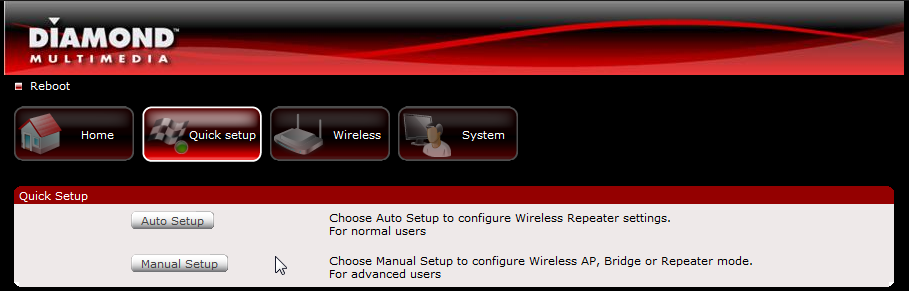
The default username and password are both “admin”. The main page should look like below (click on image to see it full-size):
sshot-2
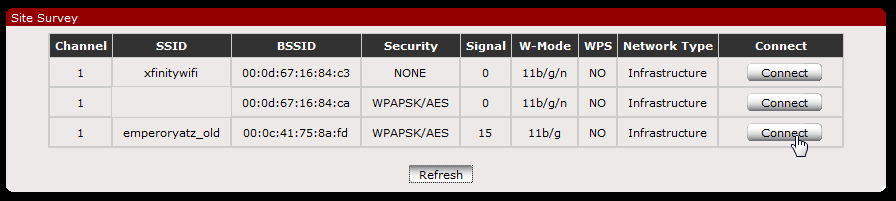
There’s an “Automatic Setup” mode in the web interface, so I really didn’t bother with using the CD setup. Clicking on Auto Setup just takes you to a Site Survey page where you choose which network you’d like to repeat, and that’s pretty much it (click on image below to see it full-size).
sshot-5
You just click Refresh until your network appears in the list, then click connect. That’s really it.
In addition to this quick setup, the WR300N offers an Access Point mode, a Wireless Bridge mode, and a manual configuration for Repeater mode, but first, I made a few necessary changes to the device’s settings.

Preliminary Changes

The first thing I did was change the default password. You can do this by clicking on the System button then clicking Password.
sshot-7
The second thing I decided to do was change the IP Address of the unit to fit my network’s scheme. You’ll find this setting under System > Local.
sshot-6

Access Point Mode

If you click on the Manual Setup button and then choose “Access Point” from the Operation Mode menu, you’ll see the following options:
sshot-3
Using the WR300N as an Access Point will allow you to add wireless functionality from a wired networking device. You can specify an SSID and encryption and it’ll do its thing.
In my testing, I found that the wireless range was very nice, probably due to the fact that this is an N-standard capable device. Using this as an access point, however, did cause some bottlenecking to occur in comparison to using the wireless on my old WRT54G v1 router running DD-WRT. It was close to comparable for the most part, and the inclusion of this mode is nice, though.

Wireless Bridge Mode

Choosing “Wireless Bridge” from the Operation Mode menu will give you pretty much the same set of options:
sshot-4
Wireless Bridge mode lets you do the opposite of Access Point mode: catch a wireless signal and use the Ethernet port to connect to a wired-only device.
I tested this with both an Xbox 360 and a desktop computer, both without any problems. It was a pretty simple and straightforward endeavor, and for a change, I was using it on a G-only network. I was not disappointed with the speed or range.

Manually Configured Repeater Mode

If you want to customize and specify your criteria, you can choose “Repeater” from the Operation Mode menu.
sshot-9
Be sure to set the Channel to “Auto,” especially if your router is set similarly. You may have some problems otherwise.

Odds and Ends

sshot-11
Once you choose your settings and apply them, you’ll need to reboot your repeater. You can just unplug it and find the optimal place to plug it in for your uses. Then, restart your computer and connect to your network again. I didn’t do this last step and I had problems getting assigned an IP from my router, so if you’re having trouble and you’re not sure you’ve configured everything, restart your computer first and then troubleshoot from there if you still have problems.

Overall Performance

Having replaced the wireless in my house with the Access Point mode of the WR300N, I wasn’t particularly impressed by its performance. There were a few hiccups here and there, but the range was definitely much improved over a Linksys WRT300N when using the 2.4 GHz setting. It’s worth noting that Diamond didn’t include a 5GHz antenna for the WR300N, so if you have a setup that works over this latter frequency, you won’t really get much use out of it.
What really did impress me was the repeater mode. When the stress was divided between the primary router and the repeater, there were no slow-downs at all, and the range was impressive. I was using an old Linksys WAP54G access point running DD-WRT in repeater mode. This device definitely gave me better throughput and the range was 1.5 times the original. I replaced my old repeater with this compact unit and had no trouble streaming HD over my network, something that was a problem for me before.

Summary and Verdict

Diamond’s done a pretty good job with the WR300N Wireless Repeater, and while there was room for improvement, it’s a pretty great product for the vast majority of people.
Positives
  • Easy setup for Repeater mode
  • Inclusion of Access Point and Wireless Bridge modes
  • WDS-compatible
  • Very small
Negatives
  • No 5GHz N antenna
  • Mediocre performance as primary wireless device
The last thing to consider is price. You can buy the WR300N from Amazon for about $60 US. That’s on par with a few of the N-capable repeaters and access points, and definitely cheaper than the nicer 5GHz-capable devices. I think the biggest advantage, personally, is that it’s small and inconspicuous. You can actually pick up two for the price of a really nice router and possibly cover a much larger area than using just 5GHz devices. I know a few people who aren’t comfortable with configuring devices on their networks, but I wouldn’t hesitate to recommend the WR300N to them, both because it’s easy to configure and because it has a WDS support. The same goes for friends who want to augment their network without replacing their router.
If you enjoy messing with DD-WRT and price is a real concern, then this repeater is not for you. If, on the other hand, you need something that is small, can be set up quickly, and is pretty fast without any tweaks, you’ll likely be happy to spend the extra cash on the WR300N.

Monday, May 16, 2011

Bento Pad : Futuristic Modular Mobile Computing


Bento Pad delivers an exceptional mobile computing experience. Bento is a cinematic tablet lets users enjoy content on the go. It employs modularity as an approach for sustainability and synergy. Measuring just 8mm thick, Bento Pad features a ten-inch wide cinematic radio OLED screen and approaches two dimensionality. Offering great grip and protection is a rubber gasket that runs around the perimeter. Another remarkable feature of Bento Pad is that of the kick stands that fold away smartly into the rear surface, providing an assortment of working angles and viewing angles. Perhaps, it acts as a Bluetooth wireless keyboard and even docks well into a laptop display.
Designer : RenƩ Lee
Bento Pad Post Tablet PC

In terms of its user interface, it appears to be quite intuitive and innovative with its home screen supporting various widgets. Just expand the dock and there is it, the Springboard is launched. Elegant touch screen controls are notable assets that add more significance to Bento Pad. The mobile keyboard is quite ergonomic and leaves an ample amount of space for apps. Its dynamic screen makes it rather simple to input languages as well as symbols. The user can just dock Bento Pad into an innovative Bento Book in a matter of minutes. In total, Bento Pad is not a mere replacement for a PC. Instead, it makes the portable computer even more better.
Bento Pad Post Tablet PC

Friday, April 15, 2011

Review: Nike+ SportWatch GPS


While I am aware that my body generally looks like poorly mixed pizza dough spread over a misshapen skeleton, I do like to get my runs in when I can. For years I’ve tried all sorts of sports watches, from GPS devices from Garmin that looked like cigarette packages with straps to heart rate monitors that told my how hard I was working while wandering down the stairs to make a sandwich.
That’s why I was actually quite intrigued by the Nike+ SportWatch. Nike+ has long been the domain of iPod and iPhone users and the original Nike+ devices were designed to work specifically with Apple music players. Slowly, Nike weaned themselves off of the produce of Cupertino and began building standalone devices including an underpowered “sport watch” that worked with the Nike+ foot pod and now this, a more complete solution with built-in TomTom GPS sensor. It is also compatible with the Polar Wearlink+ Transmitter heart-rate transmitter, in case you also wanted to check your heart rate during the run.

The SportWatch connects to Nike+ footpods or it can grab data from orbiting GPS satellites. The footpod, actually a tiny disc-shaped device that fits inside certain Nike shoes or, with a bit of finagling, on the outside of any standard pair of running shoes, senses your footfalls and distance travelled and allows for exercise measurements indoors and in locations where GPS reception is limited. The GPS sensor, however, is quite superior to the footpod and offers an up-to-the-second read out of your speed and distance.
When you’re done with your run you simply flip down an ingenious little cover to expose a USB connector and then plug it into your Mac or PC. Your run is uploaded to the Nike+ website and stored. There you can set goals, see your performance, and even challenge other Nike+ users to races. The screen is quite readable and a built-in backlight ensures you can see how fast you’re going in the dark.
Like all sports watches, this model requires considerable discipline to gain any benefits from it at all and even those benefits – unless you’re training for a longer race – are dubious. However, I was pleased with the overall design and usability of the watch and I barely noticed it on my wrist during the few runs I took it on. Nike has done an excellent job of completely stripping out extraneous settings, even to the point of removing date and time settings and requiring a PC sync to change any settings. Many sports watches suffer from a surfeit of features all controlled with two or three inscrutable buttons. This watch basically lets you start a run and end a run and then go over previous runs. It will also remind you of upcoming planned runs. You can also tap the screen to set lap times. But, thankfully, that’s about it. Many newer watches create “ghost competitors” for you to race against and offer way too many read-outs and numbers on screen at a time. The closest thing this watch gives to feedback is a “Good run!” message when you’re done.

The watch is rechargeable and lasts about four days on one charge. You can charge it via USB in a few hours.
Again, rather than stuff this watch full of on-screen functionality, most of the magic happens in the included Nike+ app and website. For that Nike is to be commended. Most GPS watches of this sort are far too complex for their own good.
That said, does the world need another GPS watch? If I didn’t, for example, carry and iPod or iPhone with me during runs I’d say “Yes.” However, many of the features built into this watch can be replicated with a good app. But you are not always going to be carrying a few hundred dollars worth of mobile electronics with you during a 10K, so this is the next best thing.
At $199 the SportWatch is a little pricey but I would agree that you’re getting what you pay for. Again, I’m no longer a huge fan of the whole “all-in-one” sports watch system but this one performs quite admirably and is amazingly easy to use. And if it gets me out of the house for a run or two, I’m happy.
scaled.IMG_0717 scaled.IMG_0716 scaled.IMG_0715 scaled.IMG_0714 scaled.IMG_0713 scaled.IMG_0712 scaled.IMG_0711 scaled.IMG_0710 scaled.IMG_0709 Screen shot 2011-04-14 at 2.48.06 PM